Introduction
This Knowledge Base article will show you the different processes that you can follow to modify your subscriptions in Xvantage.
0. Sign in to the Eden Akers Xvantage Cloud Marketplace
How to Sign In to the Cloud Marketplace : Eden Akers
1. Finding a subscription
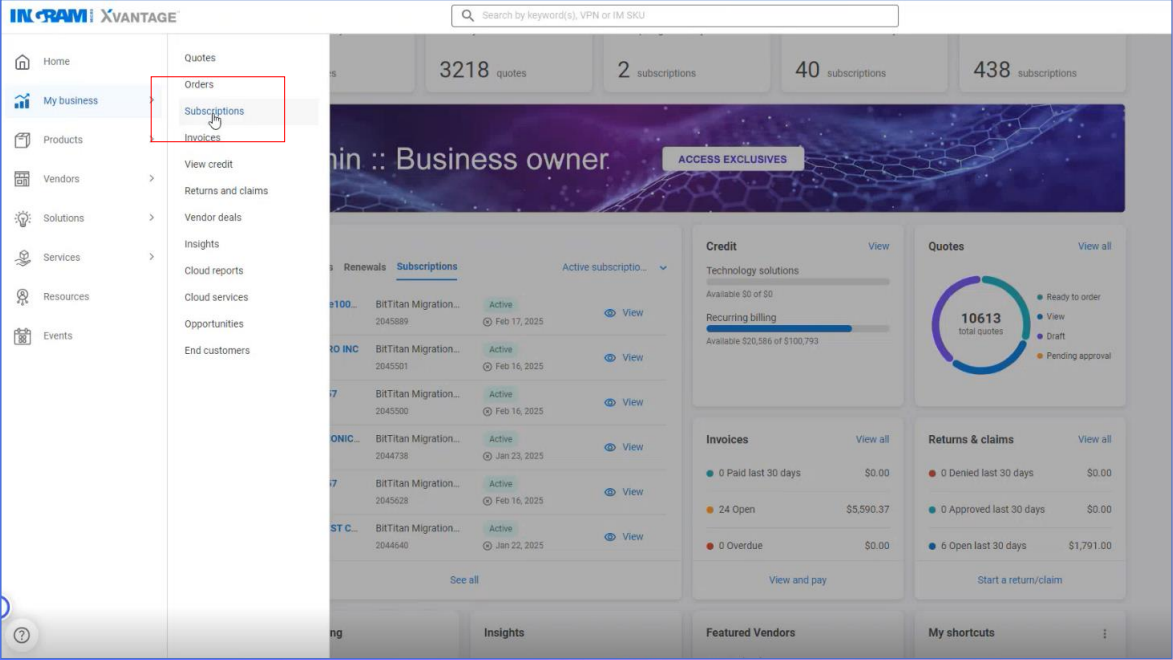
To find a subscription, go to the left navigation menu and click on "My business", then "Subscriptions" in the sub-menu.
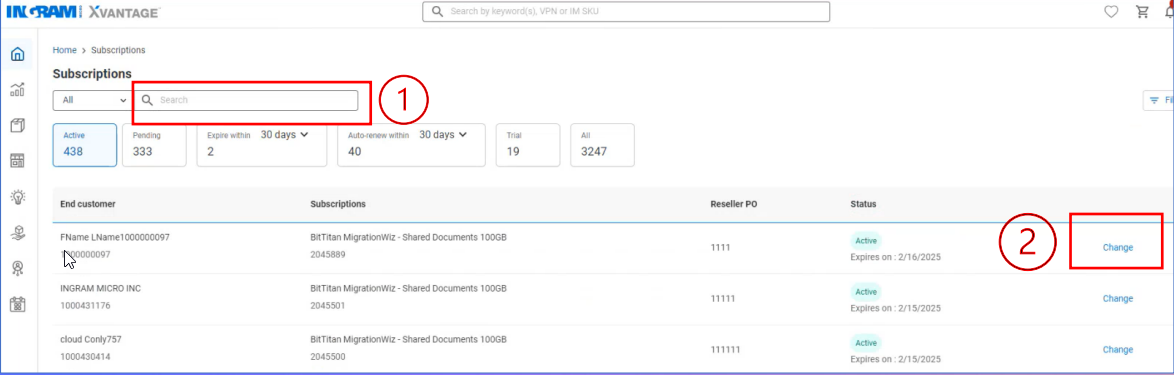
At the Subscriptions screen, you can search for the subscription in the subscription search box. Review the list of subscriptions then click on "Change" to the far right of the subscription that you want to modify.
2. Changing a subscription
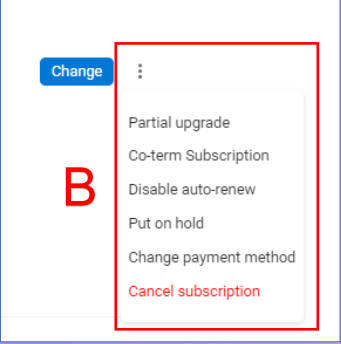
There are two ways to initiate a subscription modification:
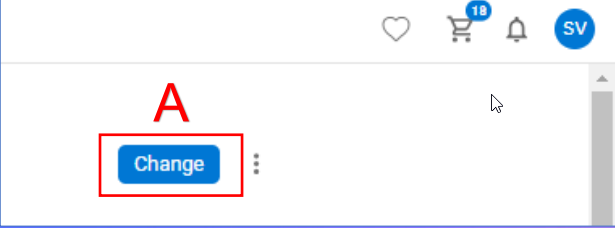
A: Click the blue "Change" icon
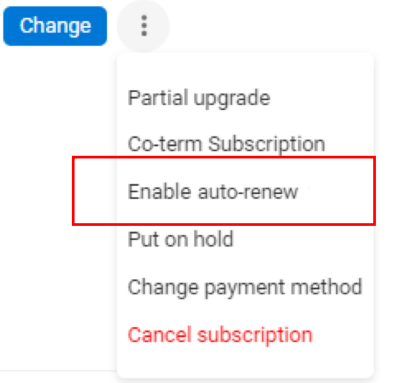
B: Click on the 3 dots next to blue "Change" icon
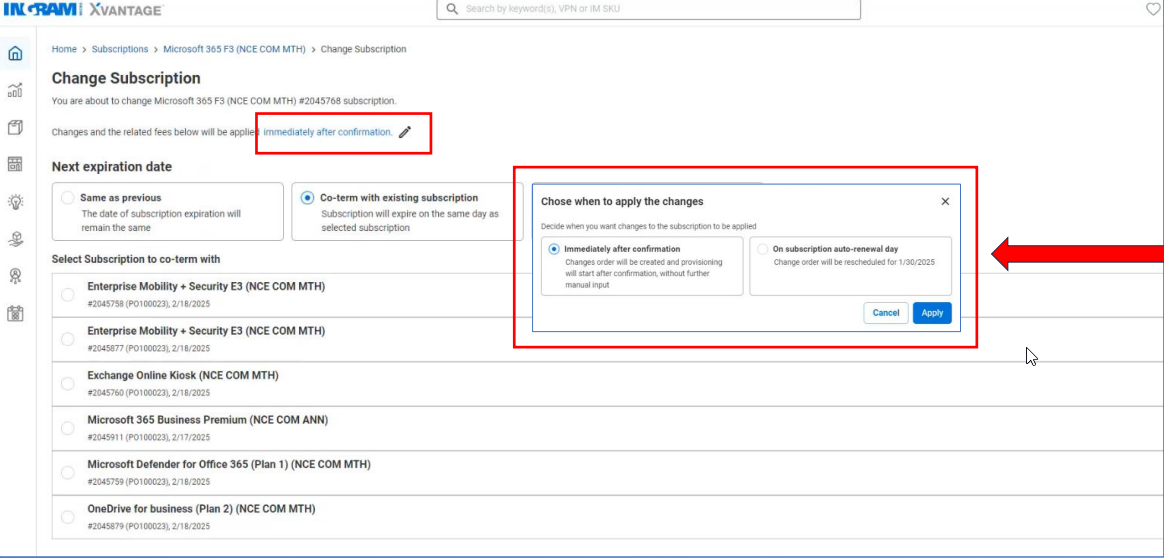
Schedule a change in subscription
You must now decide when you want the subscription changes to take place: immediately or on subscription auto renewal day.
3. Co-terming and other expiration options
Next you must choose when you want the expiration date to occur. You have three options:
- Same as previous
- Co-term with existing subscription
- Match the end of the calendar month
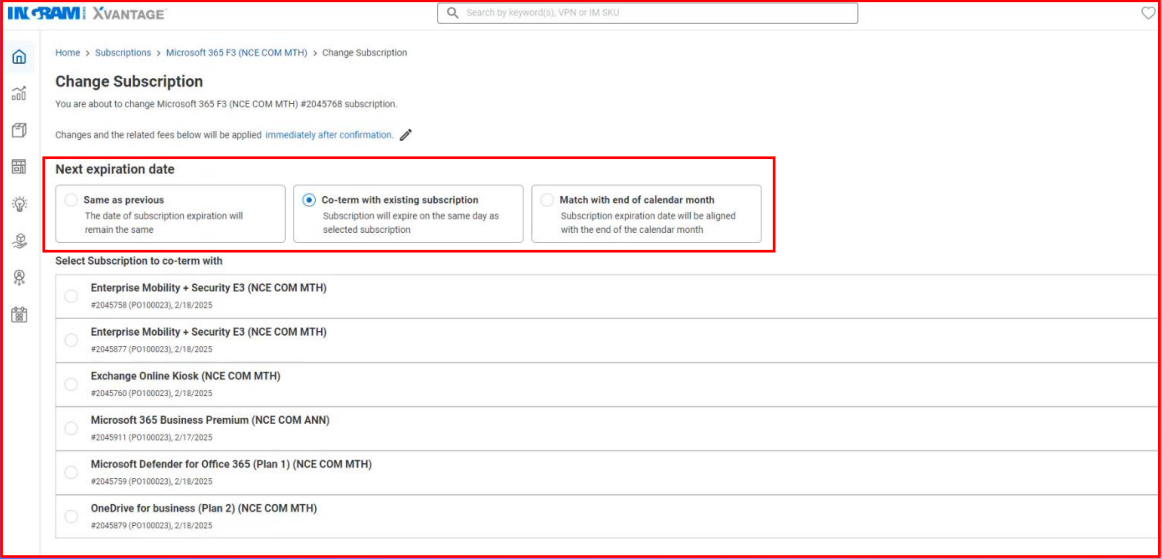
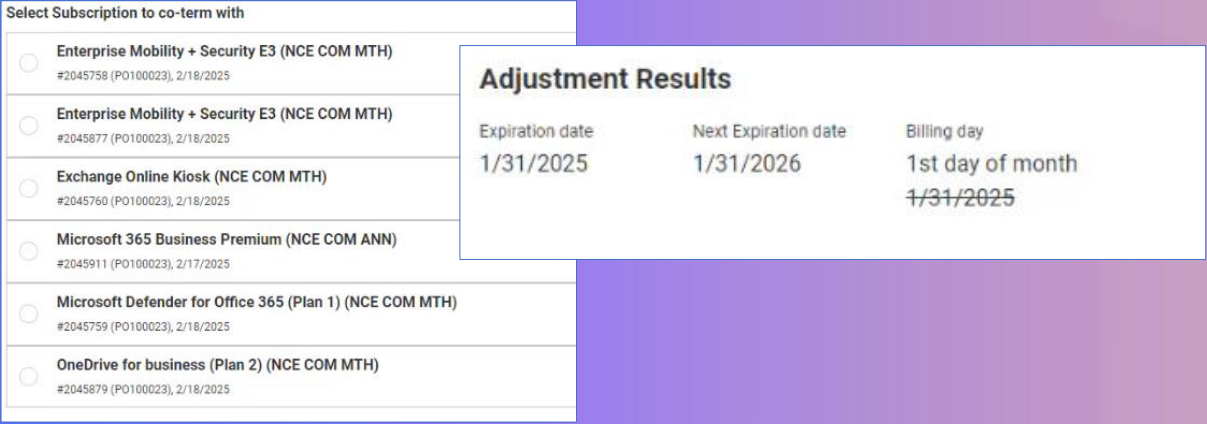
Choosing "Co-term" will allow you to select which subscription you wish to align it with. Choosing "Match the end of the calendar month" will show you the next expiration date.
4. Upgrading the subscription
Next, you have the option to upgrade the subscription plan. You can choose to upgrade or to stay with the same plan.
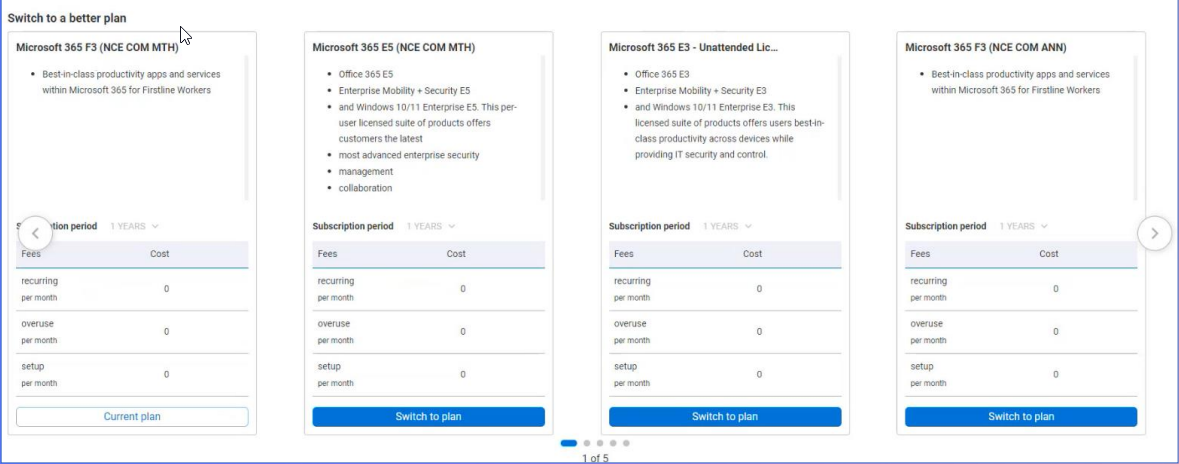
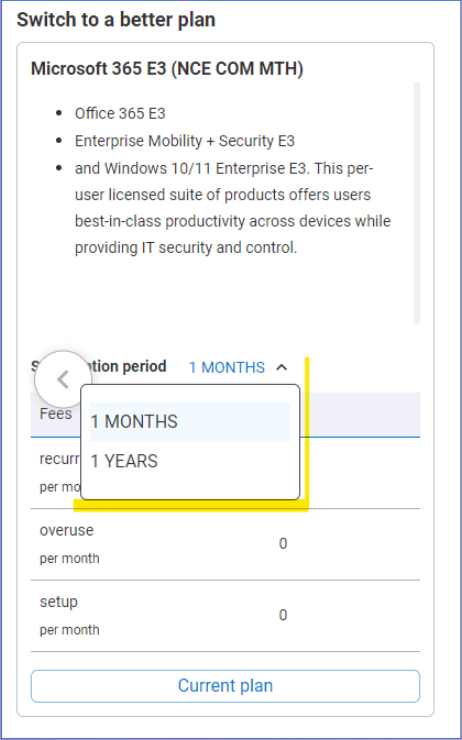
For Microsoft subscriptions, you can choose to switch from month-to-month subscriptions to annual subscriptions.
5. Partial upgrade of subscription
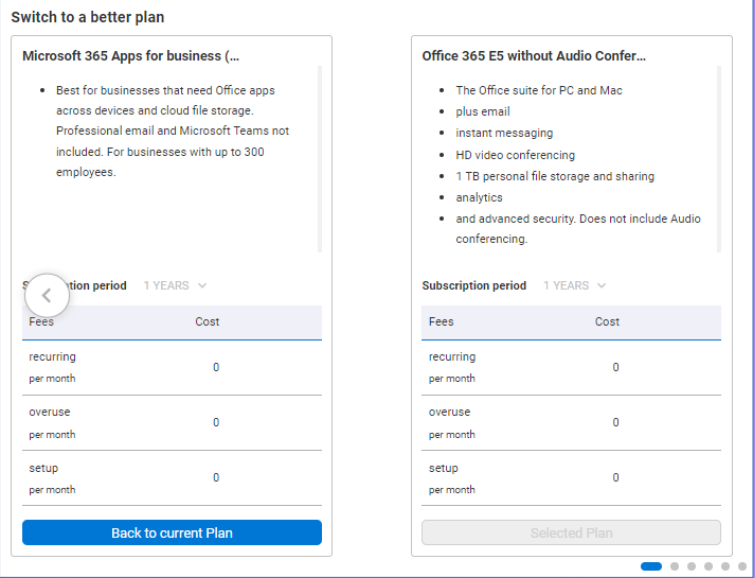
Microsoft will allow you to apply the upgrade of the subscription to a partial amount of the seats you have purchased. As long as one seat remains on the original subscription, you can upgrade as many as your customer would like.
6. Changing the number of seats
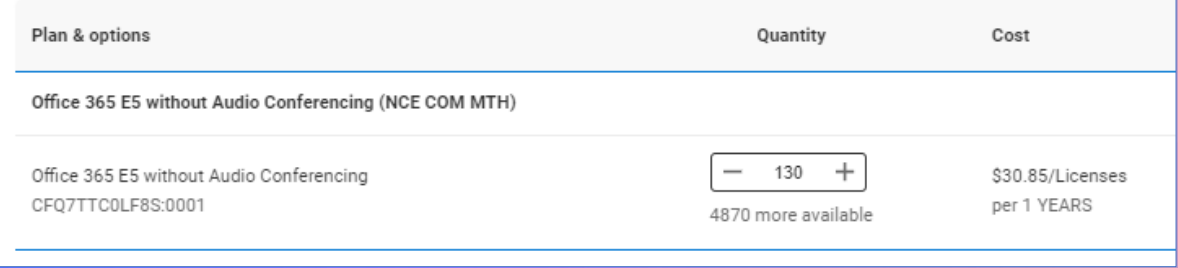
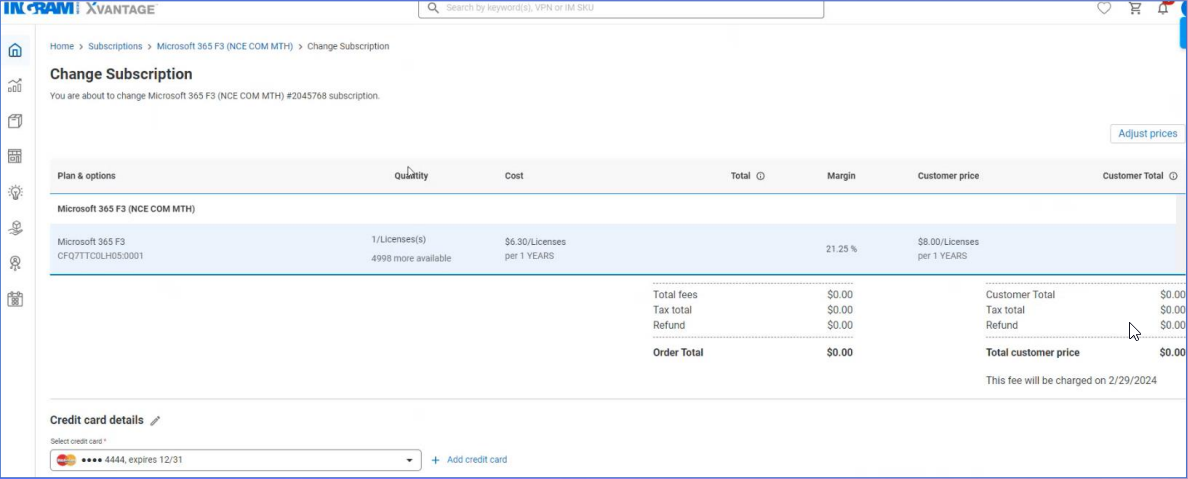
Once you have selected the plan, you now have the option to modify the number of seats on the plan. You can add or remove seats, but you must remain with at least one seat.

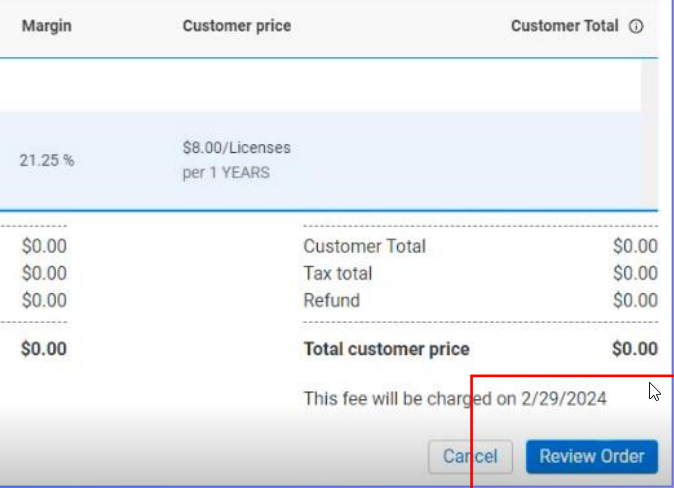
Once you have made your changes, click "Review order" at the bottom right of the screen.
7. Confirming the changes
You can place the order by clicking "Place order" at the bottom right.
9. Disable and enable auto-renew
By simply clicking "Disable auto-renew", this will keep the subscription from renewing again without manual intervention.
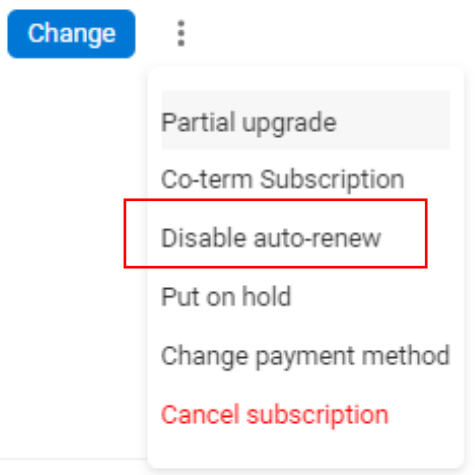
To undo this, click "Enable auto-renew".