
This guide explains how to manage your Microsoft NCE subscriptions in the Xvantage Marketplace. It covers how to reduce license quantities, cancel a subscription, and understand the limitations that apply under Microsoft’s New Commerce Experience (NCE) policy.
Prerequisites
- Access to the Ingram Micro Xvantage Marketplace.
- A user account with permission to manage subscriptions.
How to open subscription management
- Sign in to the Marketplace (instructions).
- From the main dashboard, find the Marketplace tile on the right-hand side and click [BROWSE].
- On the Marketplace or Services page, select the subscription you want to manage (for example: Microsoft Teams Premium (NCE COM MTH)).
- Open the subscription details page and, in the Subscription details panel on the right, click [MANAGE SUBSCRIPTION].
What you can do
After opening the subscription management page, the available actions depend on how long ago the subscription was purchased or renewed:
- Within the first 7 days: you can reduce the number of licenses or cancel the subscription.
- After the first 7 days: immediate cancellation or reduction may no longer be available.
NCE cancellation policy
If you are unable to reduce licenses or cancel the subscription, you may see this message:
“According to the terms of service, this subscription cannot be cancelled. Turn off auto-renewal and wait until the subscription expires.”
Why does this happen?
Under Microsoft’s New Commerce Experience (NCE), you are financially committed to the subscription term you selected, such as monthly or annual billing. License reductions and cancellations are only allowed during the first 168 hours (7 days) after the initial purchase or renewal.
Reduce or stop all licenses after the cancellation window
If the 7-day cancellation window has passed, you can no longer cancel the subscription immediately. To prevent the subscription from renewing for the next term:
- Open the Manage Subscription page.
- Locate the Auto-Renewal setting.
- Set Auto-Renewal to OFF.
- The subscription will remain active until the Expiration Date shown on the page.
Reduce only part of the licenses after the cancellation window
If you only want to reduce the quantity for the next renewal term, follow these steps:
- Sign in to the Xvantage Marketplace.
- Select Services from the left-hand menu.
- Select the subscription for which you want to reduce the number of licenses.
- Click [MANAGE SUBSCRIPTION].
- Click the [Change] button.
- Important: the change option may be set to “Immediately after confirmation” by default. C
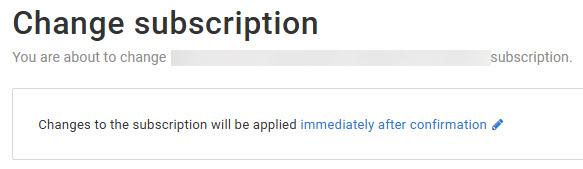 Change this to “On Subscription auto-renewal day” and click Apply.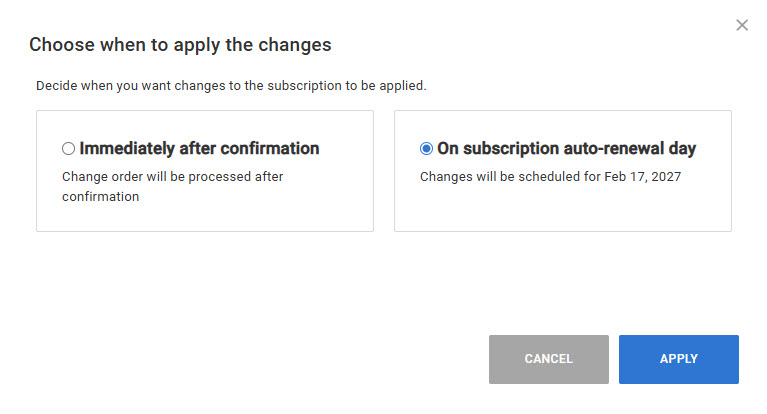
- You can now reduce the number of licenses and click [Next] to complete the change order.